In-person and kiosk
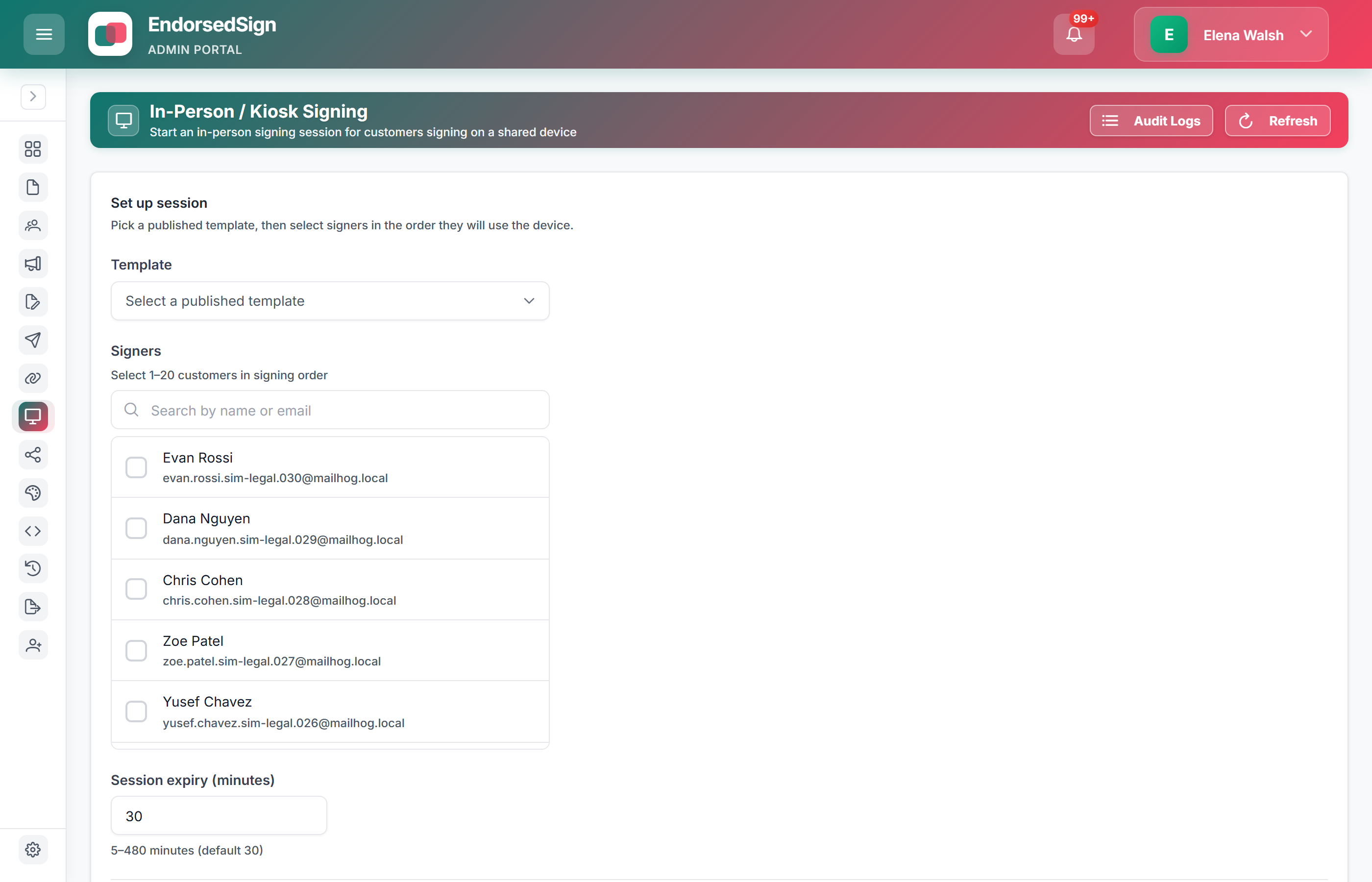
Sign at the desk with no inbox round-trip — hand the device to a signer, they complete, and control returns to staff with session boundaries intact.
When to use kiosk mode
Kiosk is the right choice whenever the signer is physically present and you want signing done before they leave.
Clinics and healthcare
Patient consent at reception. No email required. Patient signs, staff gets the completed consent immediately.
Branches and counters
Account opening, loan paperwork, and KYC forms completed at the desk during the customer visit.
Real estate viewings
Offer paperwork signed on-site during the viewing instead of chasing email the next day.
Retail and point-of-sale
Warranty registration, service agreements, and instalment paperwork completed at the point of transaction.
How a kiosk session runs
- 1
Staff selects template
Staff member selects the appropriate template in the admin portal and starts a kiosk session.
- 2
Hand device to signer
The signing interface launches in full-screen. Staff workspace is locked behind authentication. Signer only sees the signing flow.
- 3
Signer completes
Signer fills required fields, draws or types their signature, and submits. No email, no passcode, no account required.
- 4
Staff workspace resumes
After completion, the session ends and staff authentication is required to return to the admin workspace. Completed envelope is immediately available.
Start the session from admin, finish at the desk
Staff pick a template, hand over the device, and the workspace stays locked until the signer is done.
No inbox round-trip
The signer never needs an email or an account. The session is the identity check.
Staff chrome is locked
Returning to the admin workspace requires staff authentication after the session ends.
Next signer, new envelope
Each completion is independent. Start another session on the same device immediately.
Try kiosk in your sandbox
Sandbox tenants support kiosk sessions. Start a trial and test the full in-person flow.